From Zero to Booking-Ready: Build Your Service Business Website in 30 Minutes
Most lawn care and service businesses either pay $3,000–$8,000 for a custom website that takes months and needs a developer to update, or they cobble together a Squarespace site for the web and a separate app for scheduling, another for invoicing, and a spreadsheet for customers. Neither works well.
YardTack is built to do all of it in one place — branded website, online booking, crew scheduling, invoices, and customer management — and to get you set up in a single session. Here's the full walkthrough.
Full walkthrough: from empty dashboard to live booking-ready site.
Step 1: Your Dashboard Is Ready the Moment You Sign Up
You sign up, pick your industry (lawn care, pool service, pest control, landscaping, or pressure washing), and you land on your admin dashboard. No blank slate, no "add your first thing" confusion. The Get Started checklist walks you through each setup step in order — brand, services, service area, hours, payment, and layout. Everything is visible from the sidebar on day one.
The dashboard shows your jobs, customers, schedule, estimates, and invoices as tiles — you're never more than one click from any part of the platform. The whole left sidebar is your control panel for everything your business runs on.
Step 2: Set Your Brand Colors in Two Minutes
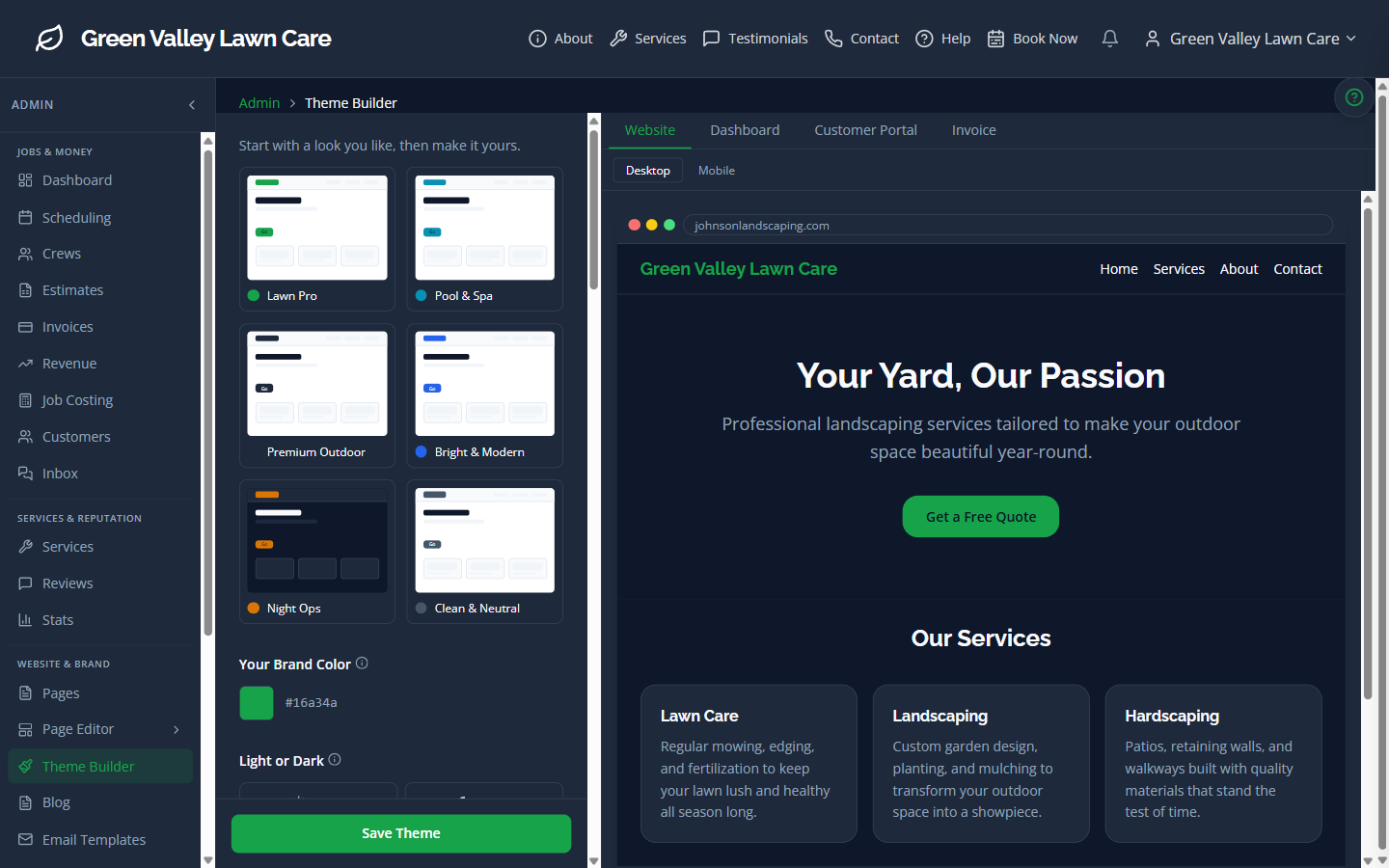
The first thing you do is open the Theme Builder. You pick from six preset color palettes — each named for a visual style (Lawn Pro, Pool & Spa, Premium Outdoor, Night Spa, Bright & Modern, Clean & Restore). Pick one and the live preview on the right updates instantly. You can see your site's navigation, hero section, and service cards in your new colors before you commit to anything.
Want an exact brand color? Drop in your hex code. YardTack derives a full palette from it — primary, lighter, darker, text contrast — so every element in your site is automatically consistent.
Step 3: Build Your Homepage with the Page Editor
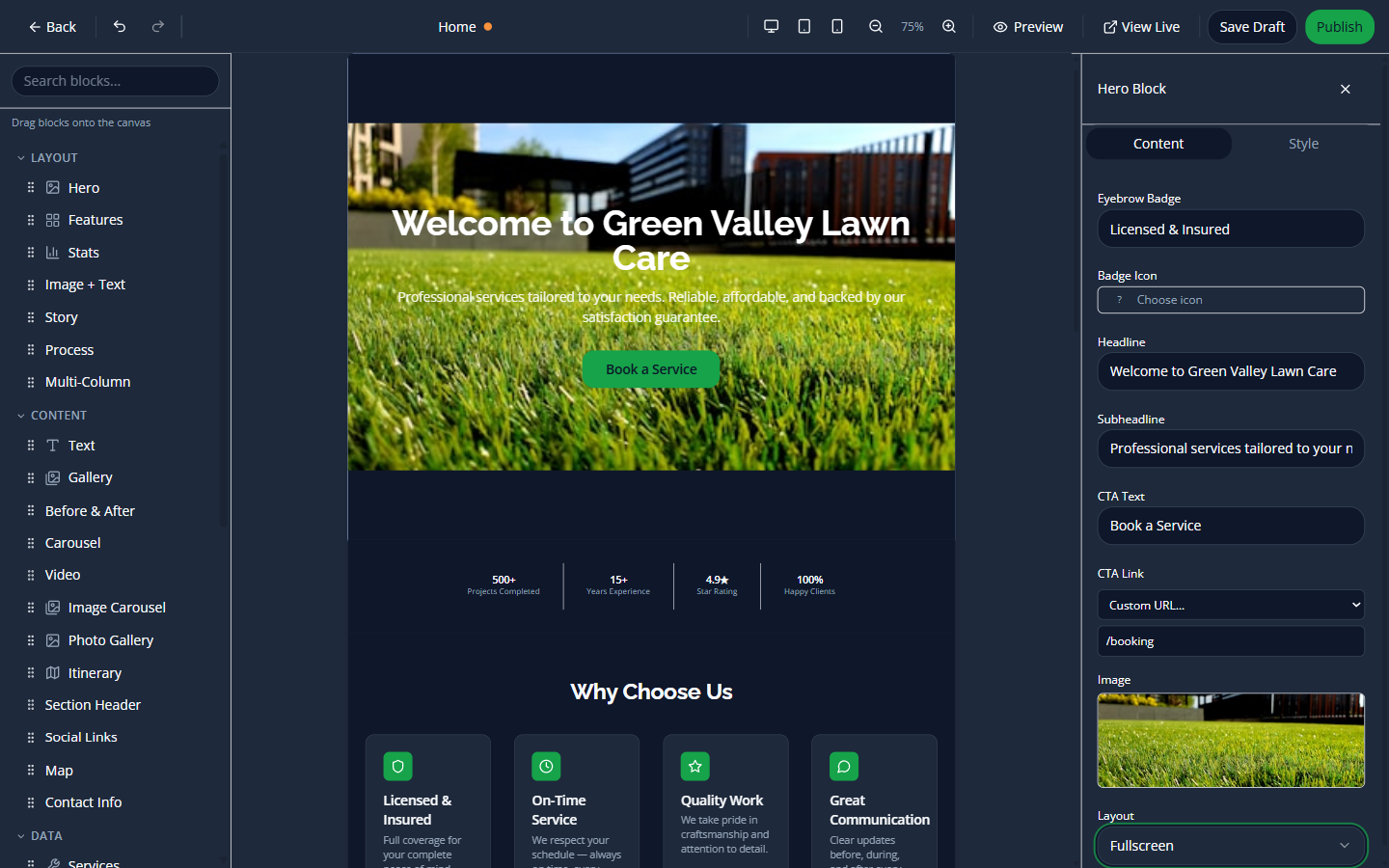
The page editor is a full drag-and-drop builder with 38 block types. Hero, services grid, before/after gallery, testimonials, FAQ accordion, countdown timer, photo gallery, "How It Works" process steps, map, social links — every block a service business website actually needs is already built. You drag them onto the page in whatever order you want, click to edit the content, swap in your own images, and that's it.
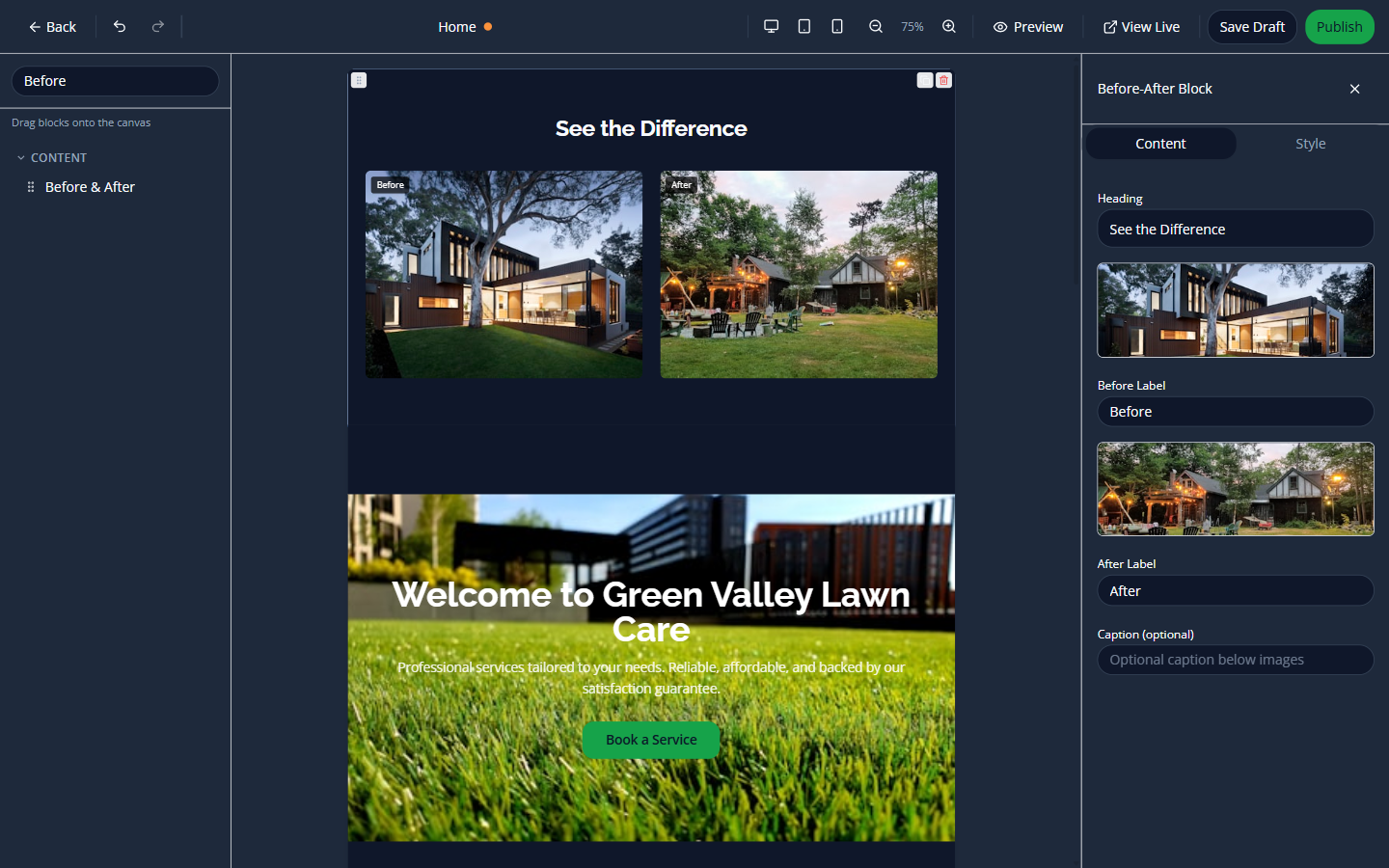
One of the most useful blocks is Before & After — two photos side by side (or stacked on mobile) with Before/After labels. For any service business where the visual result is the product — lawn care, pressure washing, landscaping — this block closes sales better than any paragraph of text.
Every block you add is visible in the layout panel on the left. Drag to reorder. Click the trash to remove. You can preview on desktop, tablet, or mobile at any time using the toolbar at the top. Nothing is published until you hit Publish — so you can experiment freely.
Step 4: Publish — Your Site Is Live
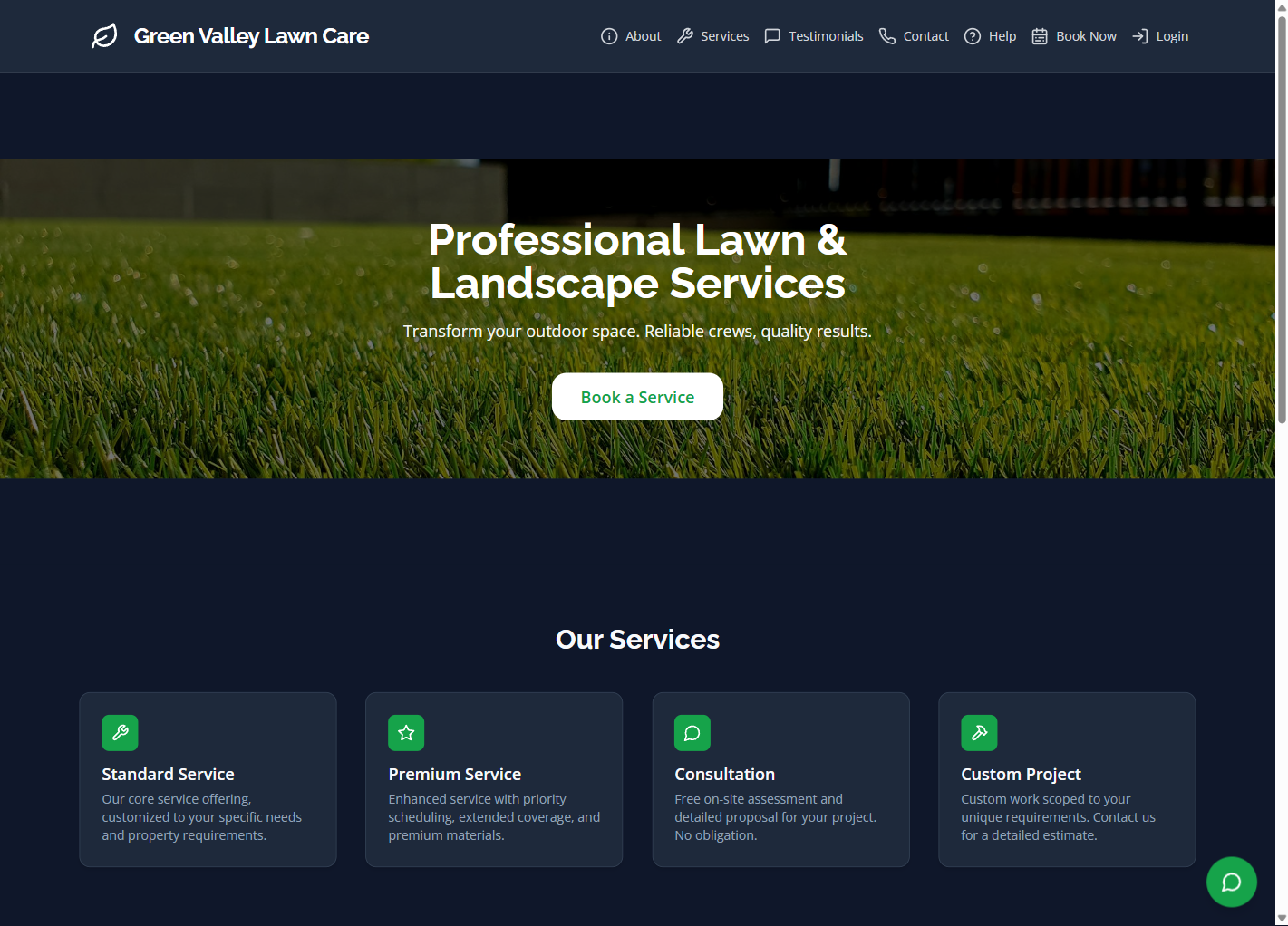
Hit Publish and your site goes live immediately at your YardTack subdomain (yourbusiness.yardtack.com). You can share that URL with customers right away. On Business plan and above you can connect a custom domain — yourcompany.com — with a simple DNS change, and we walk you through it step by step.
The site is fully responsive on mobile, fast-loading, and built for search engines. Every page includes meta tags, canonical URLs, and structured data out of the box. You don't have to configure any of it.
Step 5: Customers Book Themselves
Every YardTack site has a built-in booking flow. When a customer clicks "Book a Service," they're taken through a 4-step process: enter their address, pick a service, choose a date and time, confirm their details. The whole thing is on your site — not a third-party scheduler with someone else's branding.
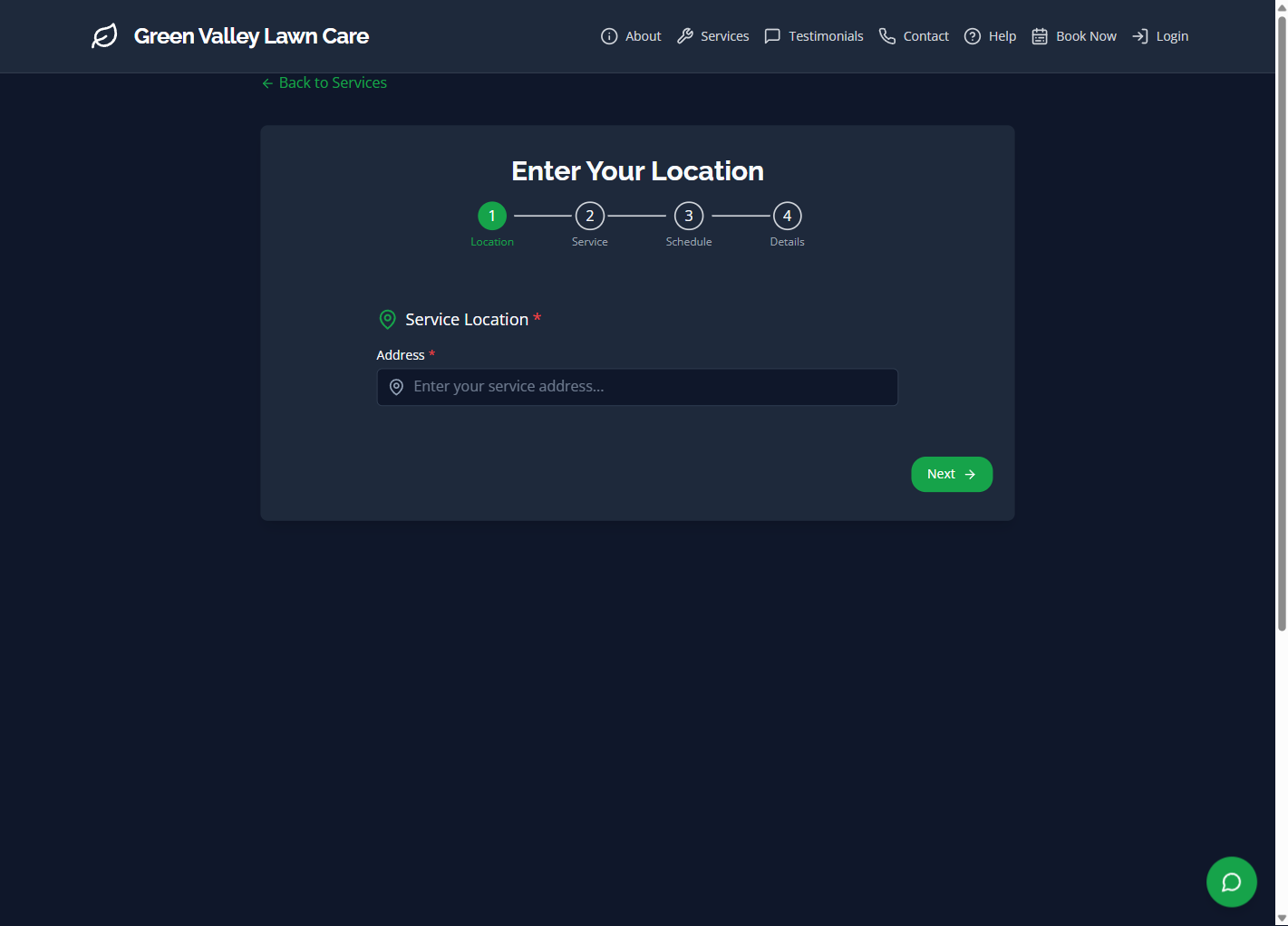
Step 1 validates the customer's address against your service area using drive-time routing — not just a radius. If they're 40 minutes away and your service area is 30 minutes, they can't book. This prevents wasted time on jobs outside your zone without any awkward phone conversations.
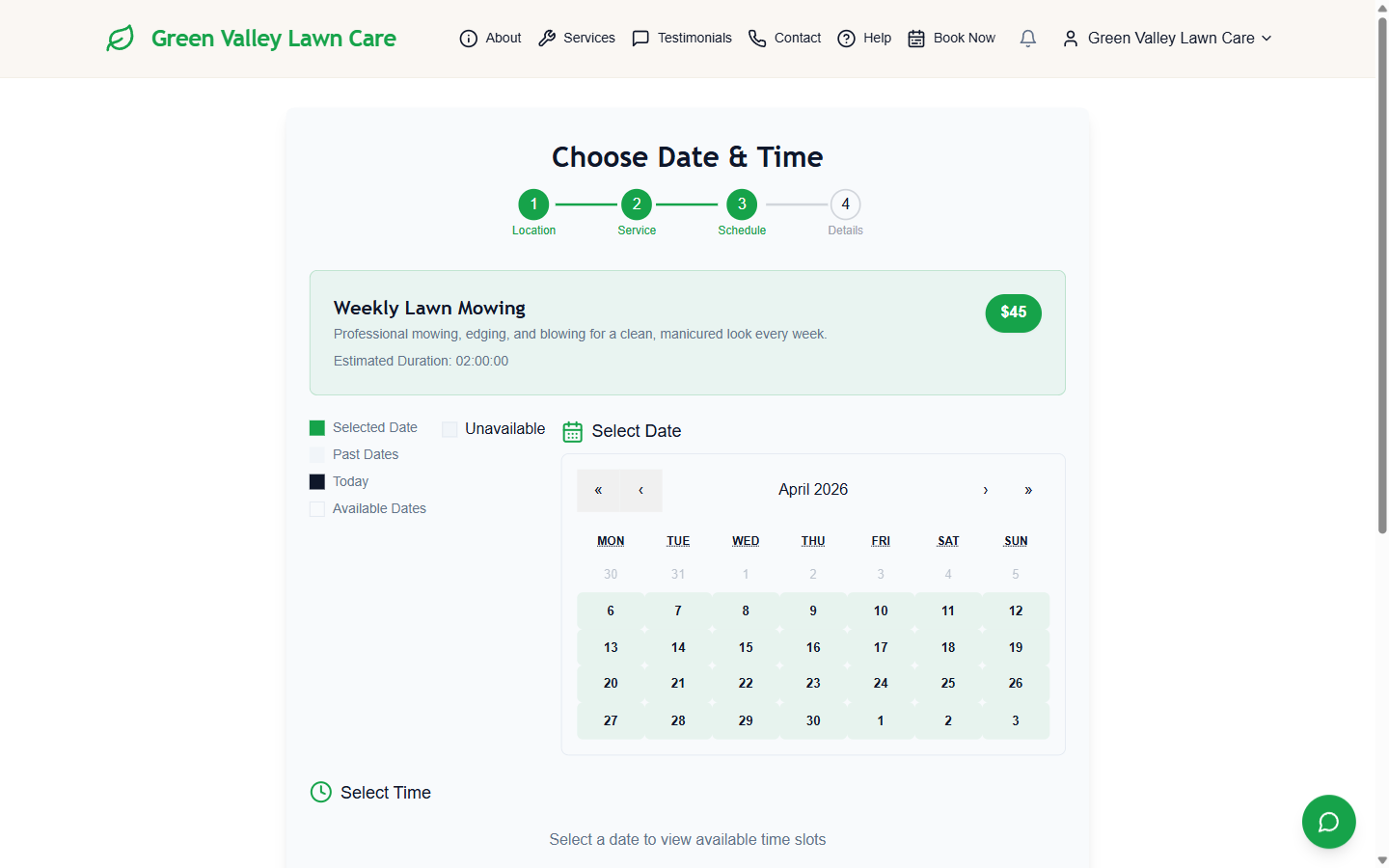
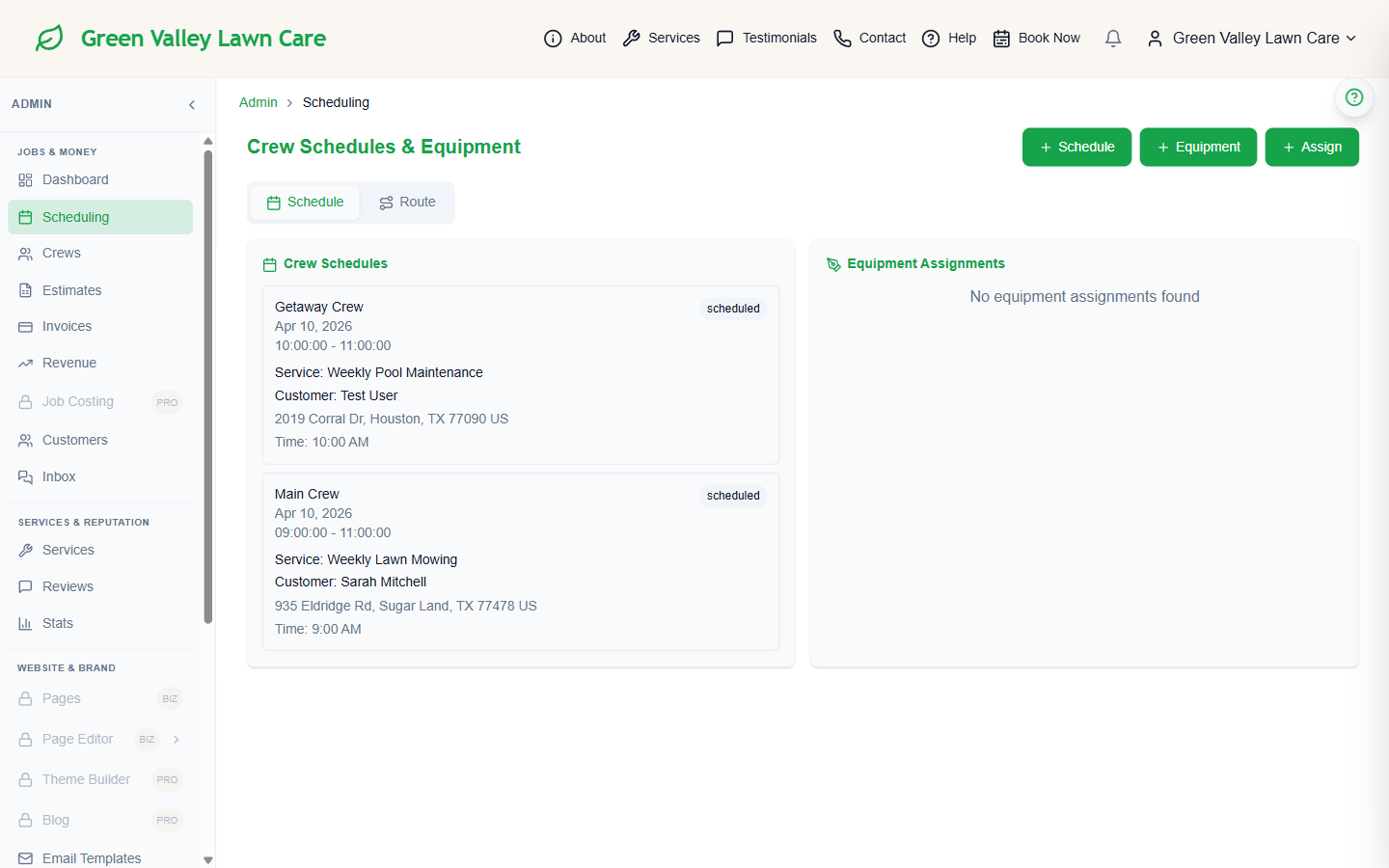
When the booking is confirmed, it lands on your schedule immediately. You get a notification. The customer gets a confirmation. No data entry on your end, no phone tag.
Step 6: Crew Scheduling and Invoicing in the Same Place
This is where most businesses have the most friction — the website is in one tool, the schedule is in another, invoicing is in a third. With YardTack, once a booking comes in, the job is already on the schedule. You assign it to a crew, they see it on their phones, and they can send the invoice directly from the job site when they're done.
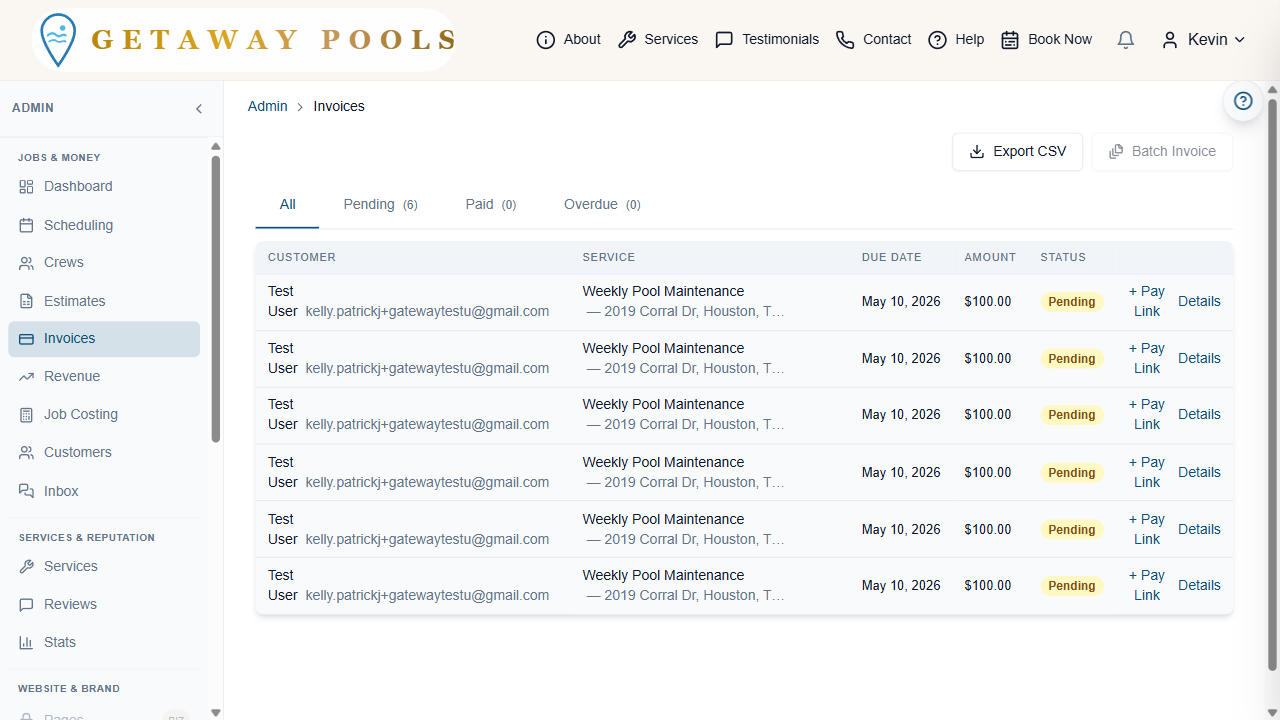
Invoices are generated from your service pricing and sent to the customer by email with a payment link. They pay online via card or ACH. You see the payment in your dashboard. The whole cycle — booking, job, invoice, payment — runs through one system without you manually moving data between tools.
What's Included in the Trial
The 14-day free trial includes everything shown in this walkthrough: the full page editor, theme builder, online booking, crew scheduling, estimates and invoicing, and your branded site. No credit card required to start, no feature restrictions during the trial, no "upgrade to see this" walls.
Plans start at $49/month after the trial. Flat rate — no per-user fees. A 10-person crew costs the same as a solo operator on the same plan.
Common Questions
How long does it actually take to get set up?
Most service businesses are fully set up and live in under 30 minutes. The walkthrough video above runs about the same length in real time — brand, services, homepage, booking. You can always come back and refine later.
Do I need technical skills?
No. Everything shown in this post is click-and-type. The most "technical" thing you'll do is enter a DNS record if you want a custom domain — and we have a step-by-step guide for that.
Can customers really book online without me being involved?
Yes. The booking flow handles service area validation, availability, and confirmation automatically. You set the rules (hours, service area radius, which services are bookable), and the system handles the rest. You get a notification and the job appears on your schedule.
What if I want a custom domain instead of a yardtack.com subdomain?
Custom domains are available on the Business plan ($299/mo). You point your domain's DNS at YardTack, enter the domain in your settings, and it's live within minutes. Your customers see your domain — there's no "Powered by YardTack" badge or third-party branding.
— Patrick Kelly, Founder